
Free Print Templates — Bleed & Trim Guides for Each Size
Free Print Templates
Download free, print-ready templates with bleed and trim guides for most of the sizes we offer. No email required.
Our PDF templates open in Adobe Illustrator, Photoshop, and InDesign. For Canva users, tap Open in Canva on any size to make a free copy in your own Canva account.
New to bleed and trim? Read our Art Specifications guide or our walkthrough on designing print files in Canva.
Jump to a product
Art Print Templates
Our most-used templates — for promotional flyers, event posters, gallery art prints, real estate sheets, and most general single-sheet printing.
Ready to print? Shop art prints →
Bookmark Templates
Bookmarks are printed on cardstock and trimmed to tall vertical formats. Each template includes bleed and safe zone for clean edges and well-balanced artwork.
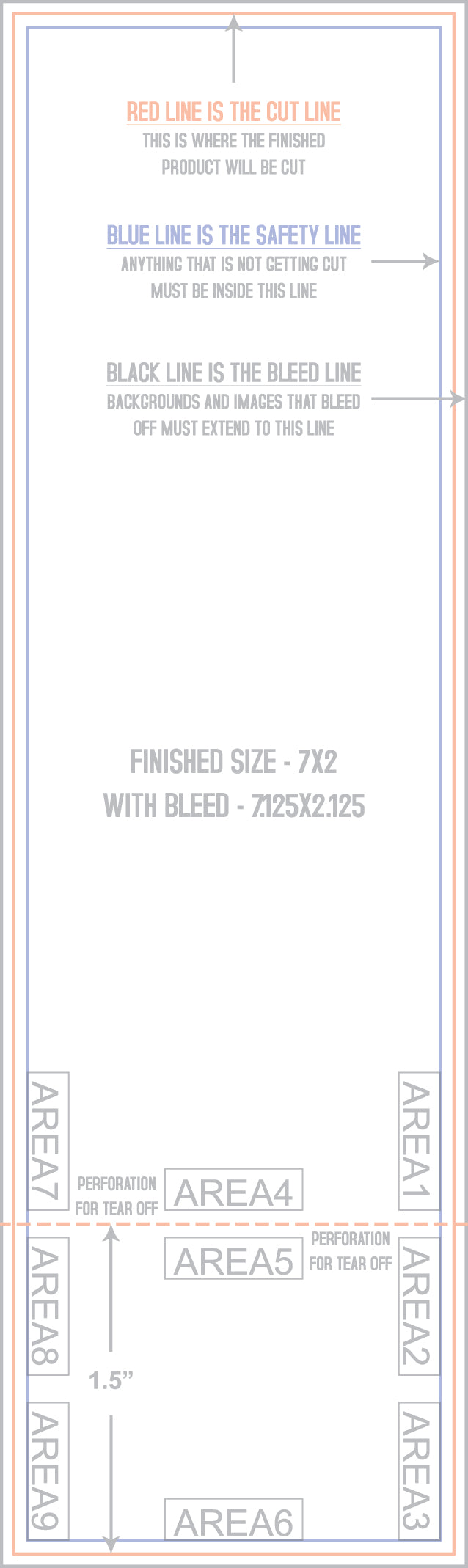

Ready to print? Shop bookmark printing →
Brochure Templates
Brochure templates include fold lines for tri-fold layouts. You'll need two files for each brochure — one for the outside panel (cover, back, flap) and one for the inside (the three interior panels).


Ready to print? Shop brochure printing →
Business Card Templates
Standard US business cards are 3.5" × 2". We also offer specialty Leaf-cut cards — templates for those are in production.
Ready to print? Shop business card printing →
Postcard & Flyer Templates
Postcard templates ranging from mini 3×3 art cards up to oversized 6×11 direct mail postcards. Most postcards are printed double-sided — the same template works for both sides.

Ready to print? Shop flyer printing → Shop postcard printing →
Rack Card Templates
Rack cards are the tall, narrow format used in travel brochure racks, real estate offices, and hotel lobbies. The standard 4" × 9" size fits most rack card display holders.
Ready to print? Shop rack card printing →
Small Poster Templates
Popular sizes for art prints, band posters, and event promotion. Both 12×18 and 13×19 are available in vertical and horizontal orientations.
Ready to print? Shop poster printing →
Stationery Templates
Stationery covers 5×7 flat and folded greeting cards, and our smaller 4.25×5.25 invitation size. Two layout options are available for 5×7 — pick whichever fits your design workflow.
Ready to print? Shop greeting card printing →
Using the PDF templates
Our PDF templates open in Adobe Illustrator, Photoshop, InDesign, and Affinity. They include guide layers for bleed, trim, and safe zone.
-
1. Download the right size and orientation
Match the template to the product you plan to order. Template dimensions include bleed — they're slightly larger than the final trimmed size.
-
2. Place your artwork inside the template
The PDF includes layered guides showing bleed, trim, and safe zone. Add your artwork as a new layer beneath the guides.
-
3. Design to the bleed, keep content in the safe zone
Push backgrounds, photos, and color blocks all the way to the blue bleed line so there's no white border after trimming. Keep text, logos, and important visuals inside the green safety margin.
-
4. Export at 300 DPI, CMYK, with bleed
Save as PDF (preferred), TIFF, or high-quality JPG. CMYK color mode is best — RGB files will be converted before printing, which can shift colors slightly.
-
5. Delete the guide layer before exporting
Hide or delete the template's guide layer in your final export. The bleed and safe zone markings should not appear on your printed piece.
Using the Canva templates
Our Canva templates open as a free copy in your own Canva account. The guide layer shows the trim margin (blue), cut line (red), and safety margin (green) — the same system as our PDF templates.
-
1. Tap "Canva" next to the size you want
Canva will prompt you to sign in (a free account works) and make a copy of the template in your own account.
-
2. Add your artwork to the template
Drag your image onto the canvas, type your text, and arrange your design within the dashed guide rectangles. The guides are locked so you can build your design around them.
-
3. Design to the bleed, keep content in the safe zone
For artwork that runs to the edge, extend it to the blue trim margin. Keep important text and graphics inside the green safety margin.
-
4. Delete the guide layer before exporting
Click the guide group (the dashed lines, instructions, and warning text), unlock it, and delete it. Your final design should not include the guides.
-
5. Export as "PDF Print"
Click Share → Download → File type: PDF Print. Do not use "PDF Standard" — it exports at low resolution and will print blurry.
Printing for clients?
If you're a graphic designer, agency, or freelancer prepping files for clients, our templates speed up your workflow — and our reseller program can speed up your margins.
Reseller accounts get volume pricing across the catalog, blind shipping by default, and a direct line to our team for rush jobs and custom specs. No monthly fees, no minimums to qualify.
Print Template FAQ
What is bleed and why do I need it?
Bleed is the extra 0.125" of artwork that extends past the final trim line on each side. When prints are cut, the blade can shift by tiny amounts — bleed makes sure no thin white slivers appear at the edges of a print where the background was supposed to reach the edge.
What's the "safe zone" on a print template?
The safe zone is the area at least 0.125" inside the trim line where it's safe to place text, logos, and important visuals. Anything outside the safe zone risks being trimmed off or sitting too close to the edge for comfortable reading.
Can I use these templates in Canva?
Yes. We offer Canva templates for many of our most popular print sizes — a great option if you'd rather skip Photoshop or Illustrator. Just tap the "Canva" button next to any size to make a free copy in your own Canva account. Prefer to set up your own Canva file? Our guide on designing 11×17 prints in Canva walks through the full workflow.
Do I have to use a template?
No. Templates are optional. If you're comfortable setting up files at the correct size with bleed and CMYK color mode, you can skip them. A real human reviews every file before printing, so we'll flag bleed or resolution issues whether you used a template or not.
What file format should I export my final design as?
PDF is preferred. We also accept TIFF, JPG, PNG, and EPS. Export at 300 DPI at the final trim size with bleed included, and use CMYK color mode for the closest color match to what'll come off the press.
I don't see the size I need. Can you print custom sizes?
Yes — many of our products support custom sizes within their press range. Contact us with your needs and we'll let you know what's possible and send you a custom template if we can produce it.
Need help preparing your file?
Templates handle 90% of file-prep questions. For the other 10%, our team is happy to help. Add a Digital Proof ($5) to your order and we'll prepare your file for printing and email you a PDF preview before going to press.